
Welcome to Schoology!
We are excited to be using this tool to help you stay engaged with your student's learning and to help you connect with your student's teachers and the school.
Signing Up for Schoology
-
-
Enter your Parent Access Code. This is a 12-digit code in xxxx-xxxx-xxxx format that you received from Tina Birkett
-
Fill out the form with your information.
-
Click Register to complete.When you use a Parent Access Code to create an account, you are automatically associated to your child. You can add additional children to your account using the Add Child button.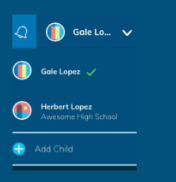
Parent Account
Having a Parent account in Schoology is actually like having two accounts:
-
Your personal account, with your own name and information;
-
Your Child Activity view. From here, you can view Schoology from your child’s perspective, and see what he or she sees, and receive updates about his or her activity.
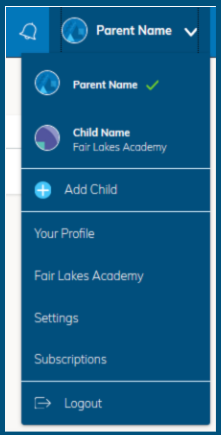
Start by clicking on the arrow in the upper-right corner, next to your name, and then select your child’s name to switch into his or her account. The check mark in this drop-down menu indicates which account you are currently viewing.
Student Activity View
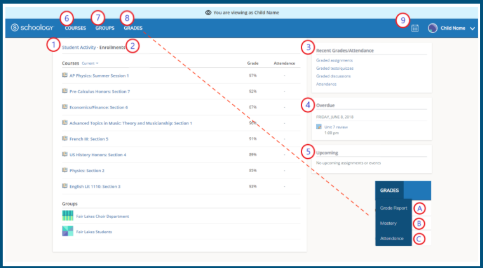
Click on the arrow in the upper-right corner of your account and select your child’s name to view his or her activity. From the home page, you can quickly view specific information about your child’s Schoology activity.
-
The Student Activity area in the center of the page displays your child’s recent submission, grade, and attendance information.
-
Toggle into Enrollments in the same area to see a list of the courses your child is currently enrolled in, along with his or her grade. If the teacher or administrator has chosen not to display the grade while the course is in progress, you will see a blank value (as in the grade column above). Click on an individual course to see grades received on assignments, tests, and discussions from that course. Depending on the permission settings in place at your school, you may not be able to view content posted by other members of the course.
-
The Recent Grades/Attendance area lists graded assignments, tests/quizzes, discussions, and attendance marks for the student. To view the graded items and attendance marks, click the item you'd like to view.
-
The Overdue section displays a list of course materials your child did not turn in by the due date.
-
The Upcoming section displays a list of your child’s upcoming assignments and events.
-
Courses: You can see a list of your child’s current courses. Click the course name to navigate to the course profile as your child views it. Depending on the permission settings in place at your school, you may not be able to view content posted by other members of the course.
-
Groups: You can see a list of your child’s Schoology Groups. Groups can be used for a variety of activities, from school projects to extracurricular teams and clubs. Depending on the permission settings in place at your school, you may not be able to view content posted by other members of the group
-
Grades: Depending on the settings in place at your child’s school, this menu provides access to view the following:
-
Grade Report: Review your child’s grades for all courses.
-
Mastery: If your child’s school aligns materials to standard and learning objectives, you can check your child’s progress in this area.
-
Attendance: Review your child’s attendance for all courses.
-
Calendar: Click to view a calendar of past and upcoming events and assignments. To find out more information regarding a particular event, place your cursor over the title. A clue tip displays with the event type (assignment, test/quiz, event), the event's course or group, and the student name. Click the event to display profile information in a pop-up window.
Communicating with Teachers
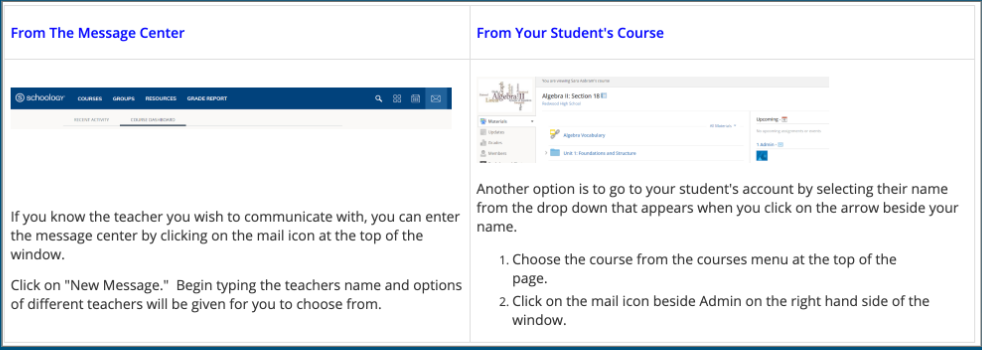
Notifications
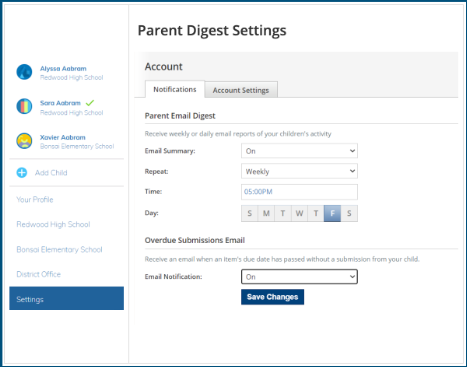
There are various notification options that parents can choose. You can opt to receive a daily or weekly digest for your student's information and/or push notifications via email or text when certain items in Schoology are changed for courses, groups, or announcements that you are enrolled in as a parent (like this Parent Orientation course). You also can determine for what types of things you want notifications.
You can get to the daily or weekly digest settings by clicking on the drop-down menu beside your name in the upper right corner, selecting a student account, and then choosing the settings option.
Mobile App
Schoology also has a mobile app that you can download. This is something we highly encourage parents to install on either iOS or Android. The mobile app allows you to check what's happening in Schoology when you're on the go.
|
|
|

